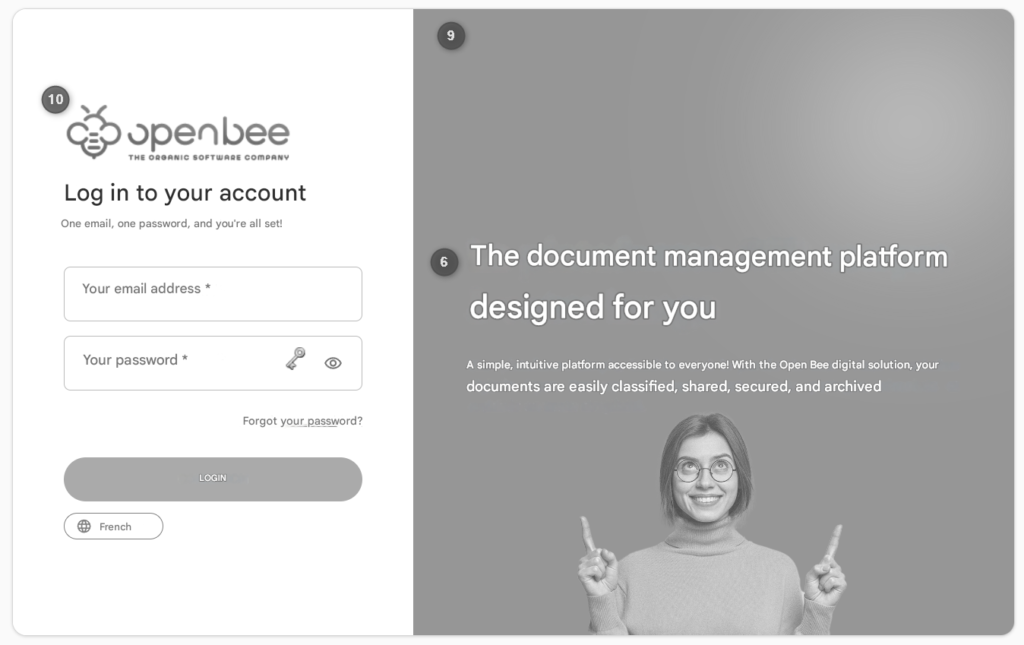
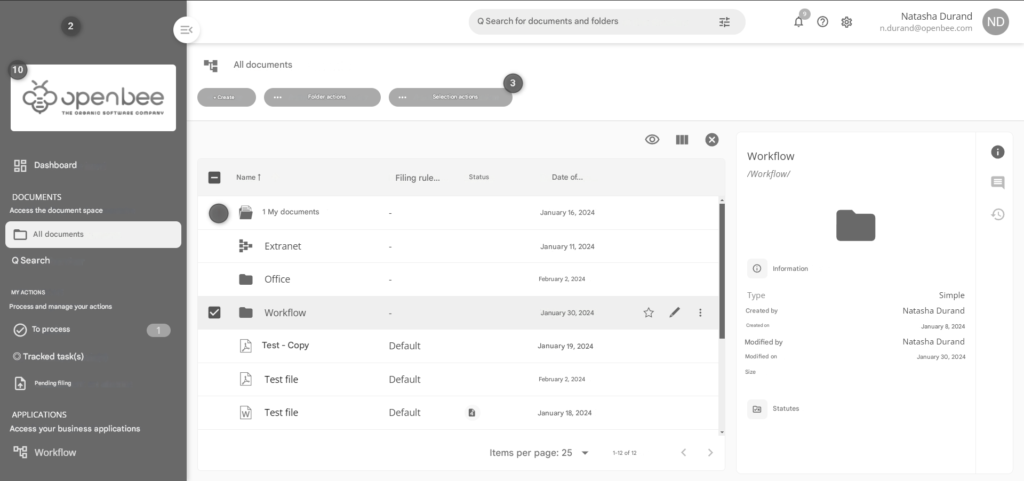
This interface allows you to customize visual and textual elements of the user interface.
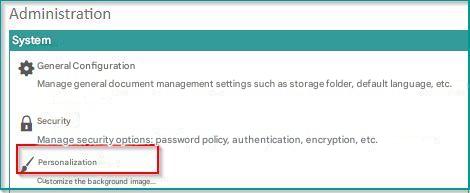
To access it, click on “Administration” “Customization“.
To validate each action/modification made in this section, please click on the button: “Save” at the bottom of the page.
1/ Name of the “My Documents” folder: the “My Documents” folder contains the personal folders of all users. This gives each user a space in which to store their personal documents. This field allows you to change the term “My Documents” for all screens in the application.
2/ Primary color: allows you to change the color present in the menu, on the login page as well as on most screens.
3/ Secondary color: allows you to change the color present on the buttons of the authentication screens and the dashboard.
4/ Tertiary color: allows you to change the color present in the menu dots as well as in the header.
5/ Product name: allows you to customize the term Open Bee™ Portal in all the places where it is present (email, footer, header, etc.).
6/ Authentication – Default text: allows you to customize the text displayed to all users on the authentication screen. If the default option is checked, the default (translated) text will be displayed.
7/ Authentication – Title color: allows you to customize the color of the title displayed on the authentication screen.
8/ Authentication – Description color: allows you to customize the color of the description displayed on the authentication screen.
9/ Authentication – Image: allows you to customize the image of the authentication screen. The color and opacity of this image can be changed to make the text more readable.
It is recommended to select an image with a maximum resolution of 1700*1500px that does not exceed 1MB.
10/ Logo: allows you to customize the logo of the application on the login screen, in the menu and in emails.
The logo must not exceed a size of 325×60 and cannot be less than or equal to 240×40.
11/ Favicon: allows you to customize the icon in the browser bar.
11/ Company logo: allows you to customize the company logo. It is used as a replacement for the app logo in case of a retracted menu.
Here are two illustrations of the interface elements that can be modified by these different parameters: