The electronic stamp function allows you to manually or automatically affix a server stamp certificate to PDF documents filed in the Open Bee™ Portal.
A server stamp certificate is the digital stamp of your company or a natural person to certify digital documents.
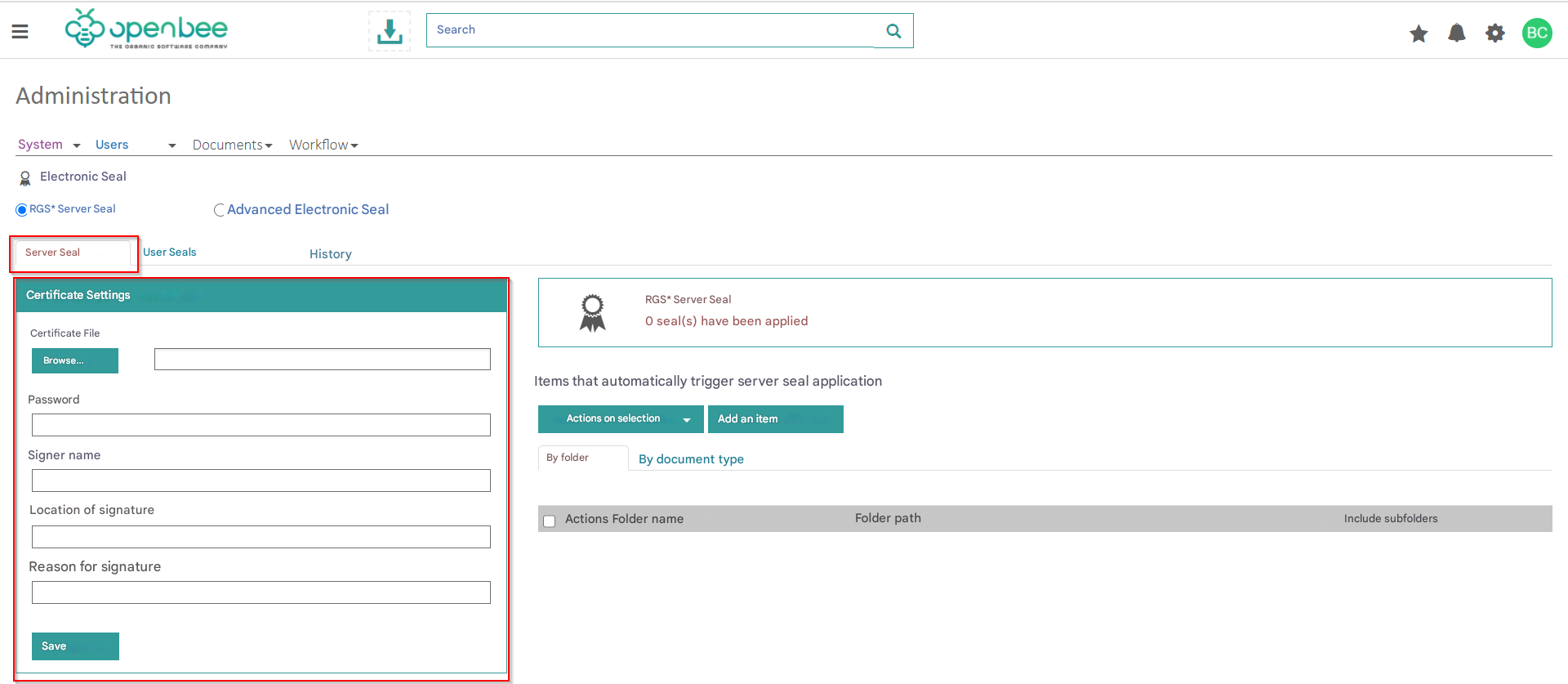
To set up your certificate, go to “Administration Electronic Seal“.
This feature requires Open Bee™ Scan OCS and an internet connection to work.
To be active, the electronic stamp function requires an RGS* server stamp certificate to identify your company. This certificate must be issued by a trusted third party and recognized by Adobe® Acrobat® Reader® DC.
To evaluate this feature, you can use self-signed certificates.
RGS Server Stamp*
Register a Business Certificate
From the “Server Seal” tab on the left side of the administration screen, a download form allows you to register your certificate and the associated password.
- Certificate file: This file must be in PKCS#12 format
- Password associated with the certificate
- Optional information associated with the signature. We recommend that you indicate here the name of your company, the place where the documents are stored, and finally a reason such as “Dematerialization”.
Your certificate password is stored encrypted by a 256-bit AES algorithm to ensure its security.
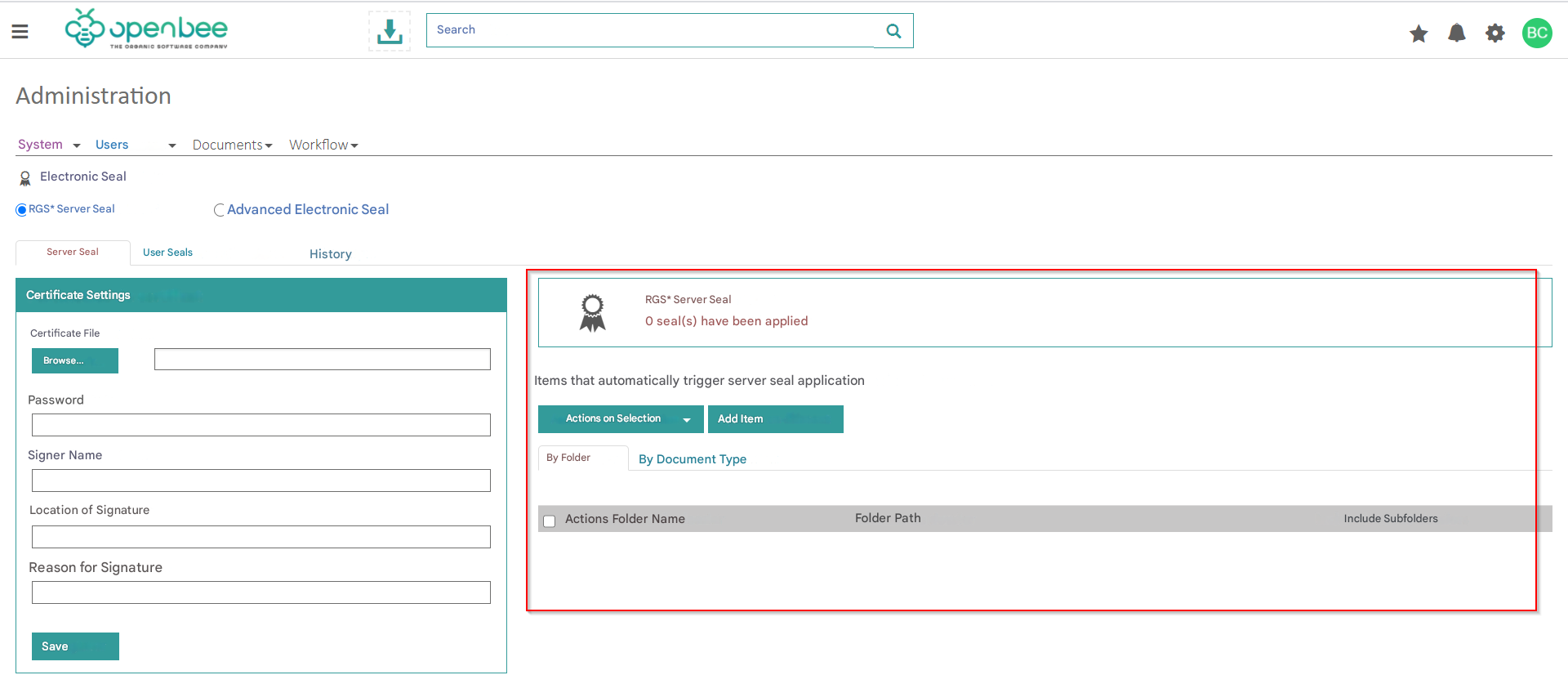
Automatically sign documents as they are filed
On the right side of the admin screen, you can set up rules to automatically sign documents when they are added. Two modes are possible:
- Per folder: all incoming documents in the selected folder and these subfolders will be automatically signed
- By filing rule : all documents filed with these rules will be automatically signed
These auto-sign rules are convenient but can give access to the electronic seal to a large number of users.
A user with permissions to file a document with a filing rule that automatically triggers a signature is thus implicitly authorized to sign documents with the company’s stamp.
Register an individual certificate
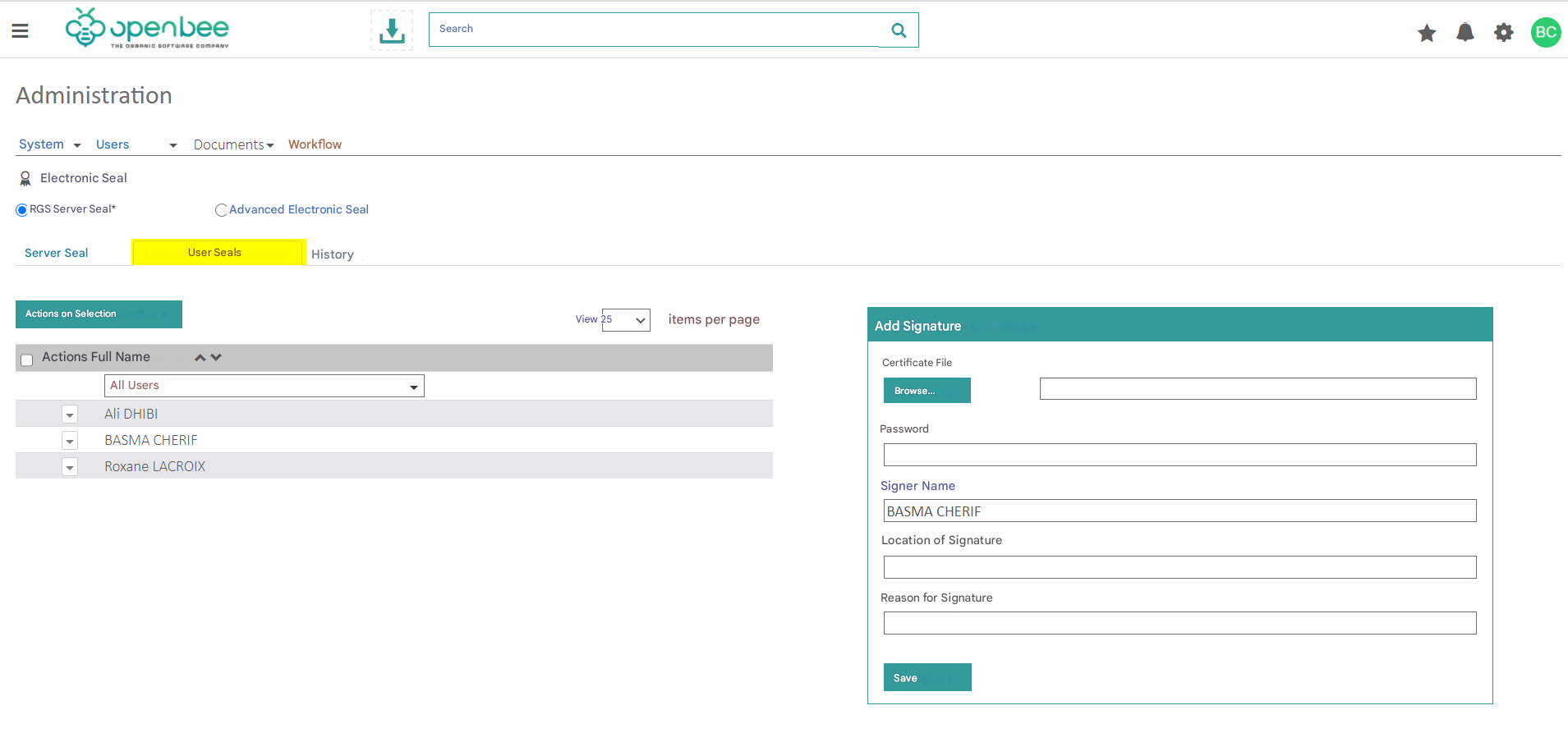
In addition to the enterprise certificate, which is global to the solution, it is possible to define certificates for each user.
From the “User Fees” tab, select a user from the list on the left. The form on the right-hand side allows you to register an electronic certificate that will be attached to the user and can only be used by the user.
 The user can also set his certificate himself from his user profile.
Sign documents manually
From the document viewer interface, users with the necessary permissions can sign documents manually or in batch action.
| Signing on a document | Batch Signing |
|---|---|
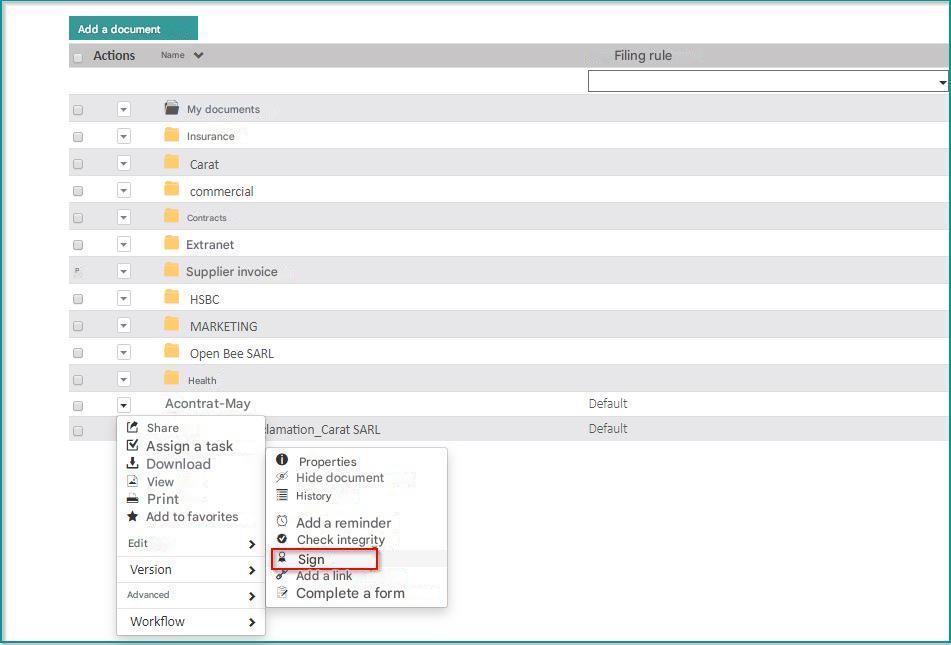 | 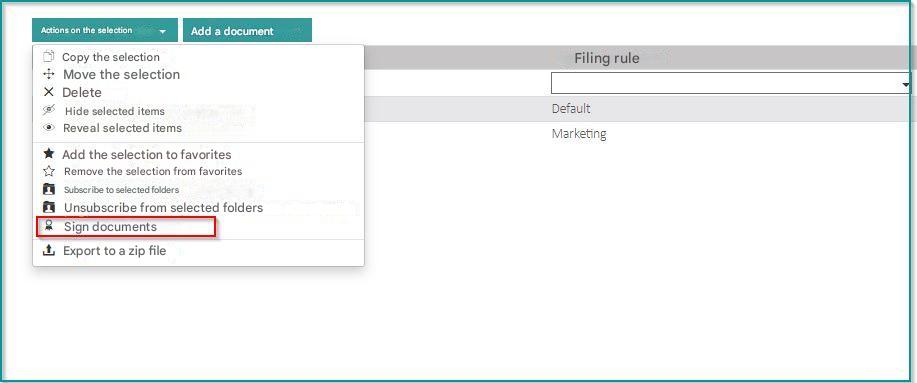 |
The “Sign” action is only available under the following conditions:
- the document is a PDF
- The logged-in user has the necessary permissions
- a certificate has been registered in the administration
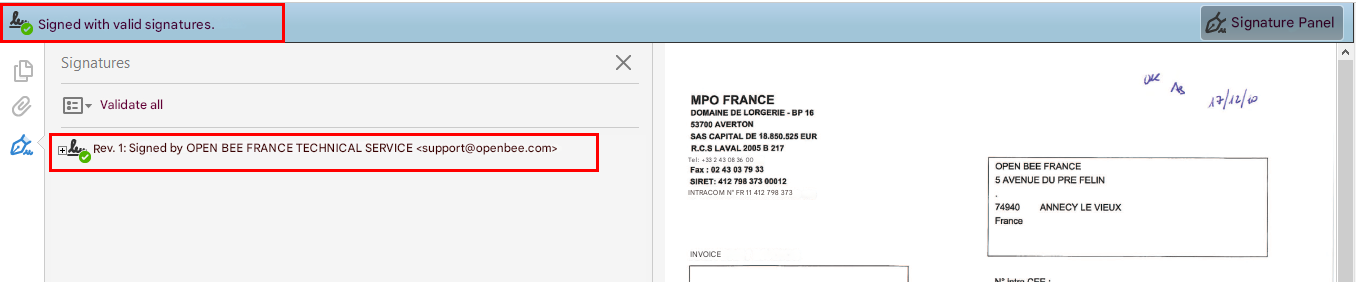
Preview the PDF signature panel in Acrobat Reader:
Advanced Electronic Seal
Prerequisite:
– Option available in CLOUD and On Premise if the server is exposed to the Internet
– Compatible with PDF documents up to 10MB
Setting up accounts
Open Bee™ Portal offers a new electronic seal allowing the application of advanced electronic seals via a qualified and eIDAS-compliant service provider, Universign.
From the “E-seal” tab on the left side of the admin screen, you can use either a default account or a dedicated account:
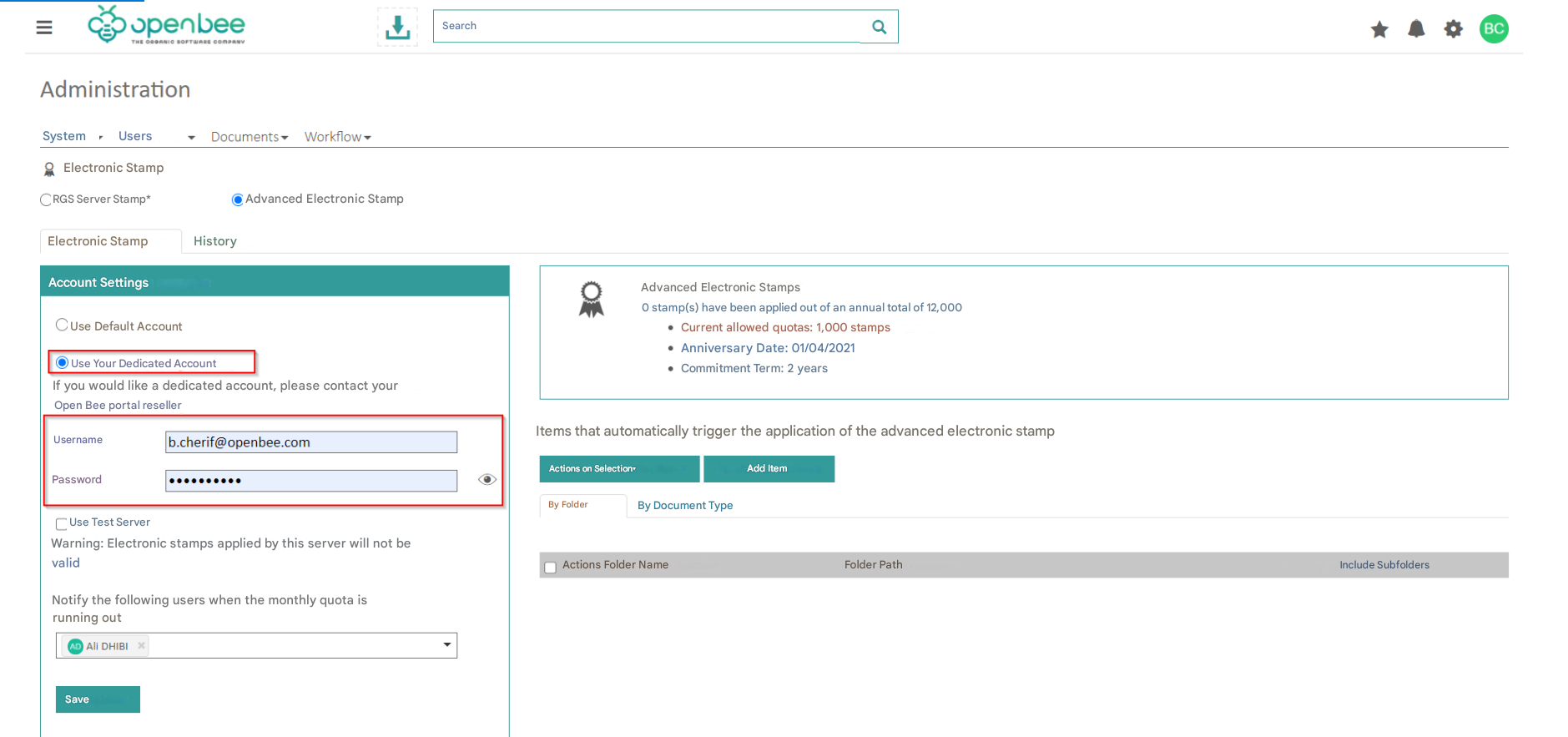
Use your dedicated account
This option can only be configured if you have a custom certificate in the name of your company’s legal entity (paid option).
If you have your own custom certificate:
- Check the “Use your dedicated account” option
- Enter your credentials
Use the default account
If you don’t have a custom certificate, you’ll need to set up the default account, i.e. the Open Bee account.
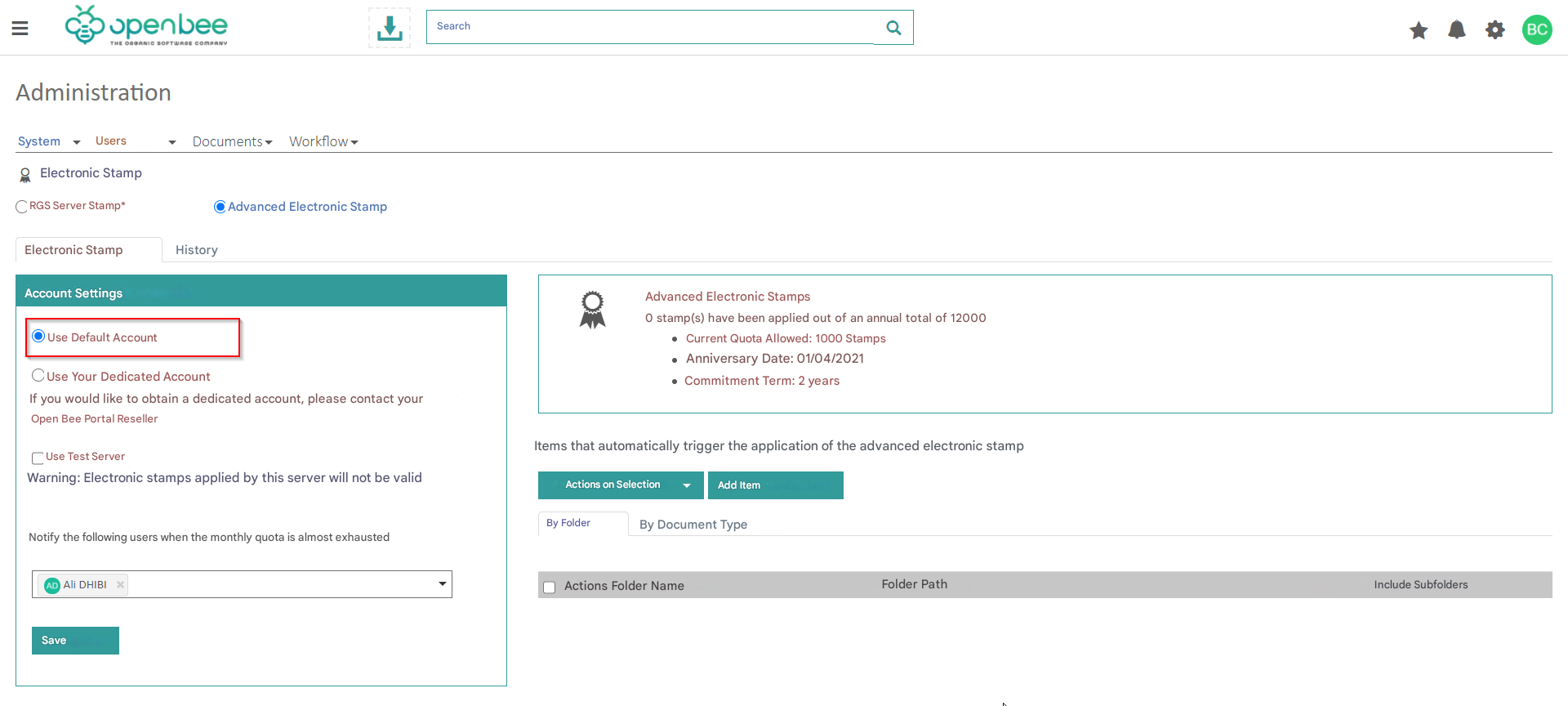
The ” use test server ” option allows you to choose the mode of operation:
- Or in test mode (by checking the box)
- Or in production mode
Electronic stamps applied by the TEST server will not be valid and will not be deducted from your annual quota
Automate the act of stamping documents when they are filed
From the interface below, you can configure the fact of automatically affixing electronic seals to documents when they are filed in Open Bee Portal.
There are two possibilities:
- By filing rule: all classified documents subject to the chosen rule will be electronically stamped.
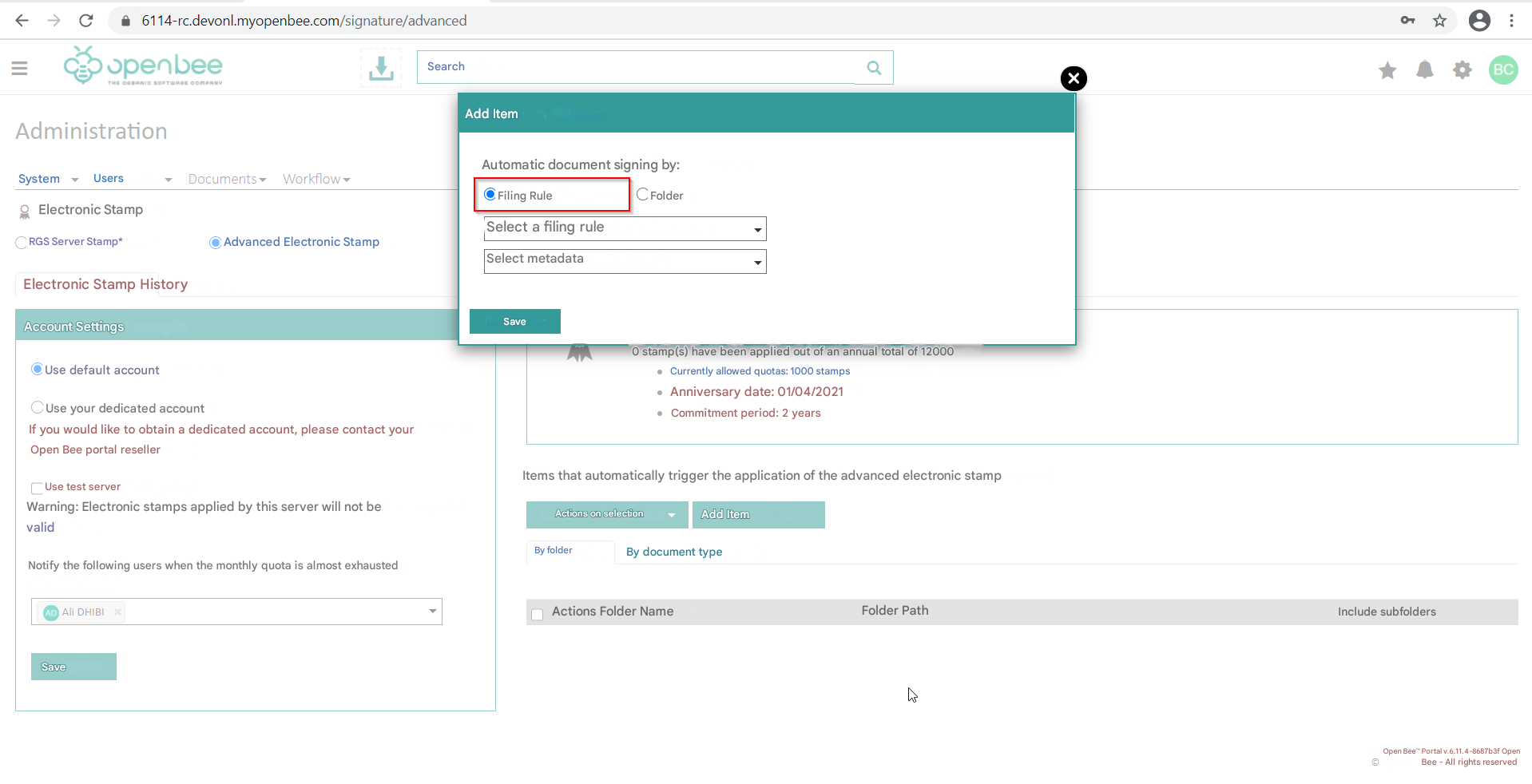
- By folder: all documents filed in the selected folder (and subfolders belonging to them) will be electronically stamped.
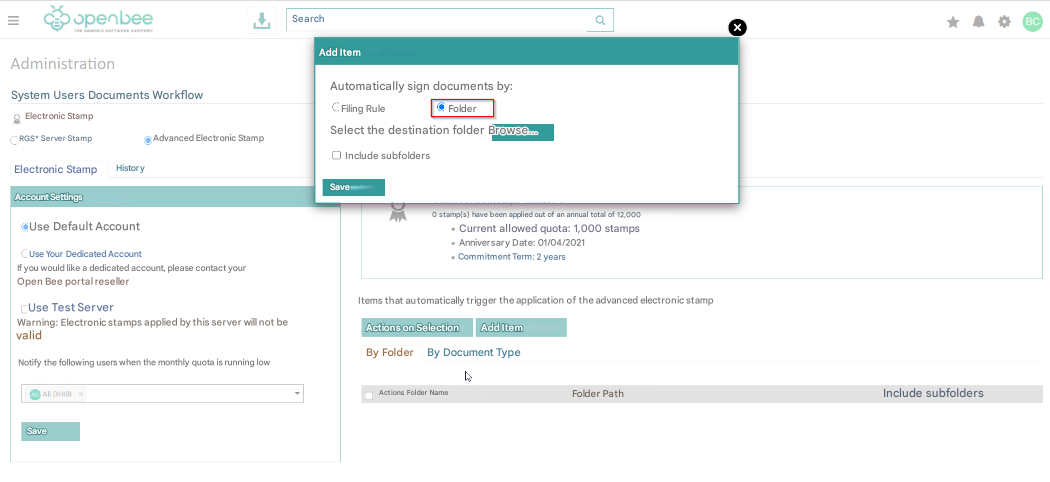
- To finish the configuration, click on ” Save “
To affix an advanced electronic seal to a document:
- Click on the ” Documents” tab in the main menu.
- Classify a document using the folder or filing rule that you have previously set up in the administration section of the electronic seal.
- Once the document is classified, Open Bee Portal will detect that it needs to apply an electronic seal, the document will then be sent to the UNIVERSIGN service provider, who will send it back with the stamp applied.
- Refresh the page
A second version of the document in which the advanced electronic seal will be affixed will be created with a stamp  icon as indicated in the following interface.
If the test mode of operation is selected, the stamp icon is displayed with the color orange.
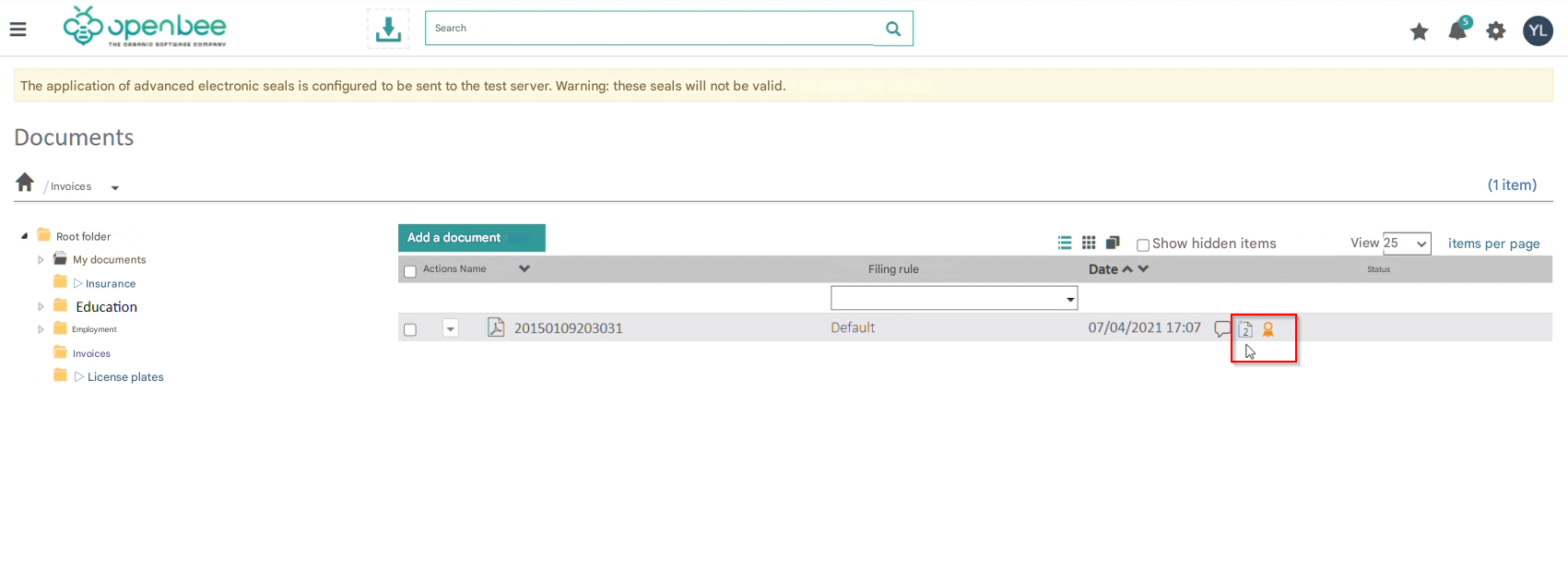
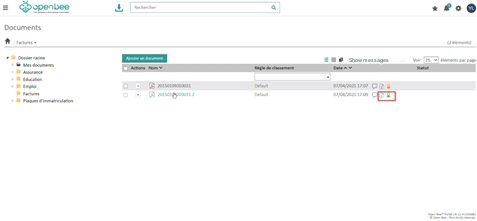
If the document has been signed with the production environment, the icon is displayed in green, as indicated by the following interface:
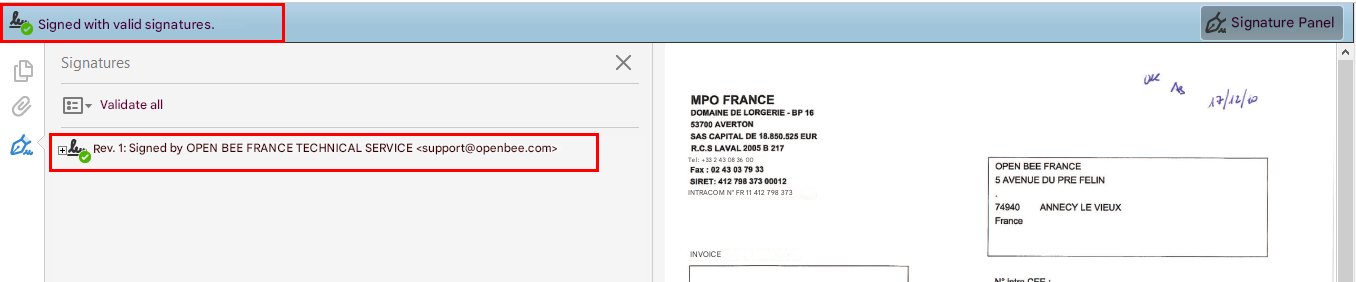
Preview the PDF signature panel in Acrobat Reader:
To view and verify that the stamp has been applied to the document.
- Download the document and view it in Adobe
Note: Only PDF documents are compatible with the advanced electronic seal. They should not exceed 10MB.
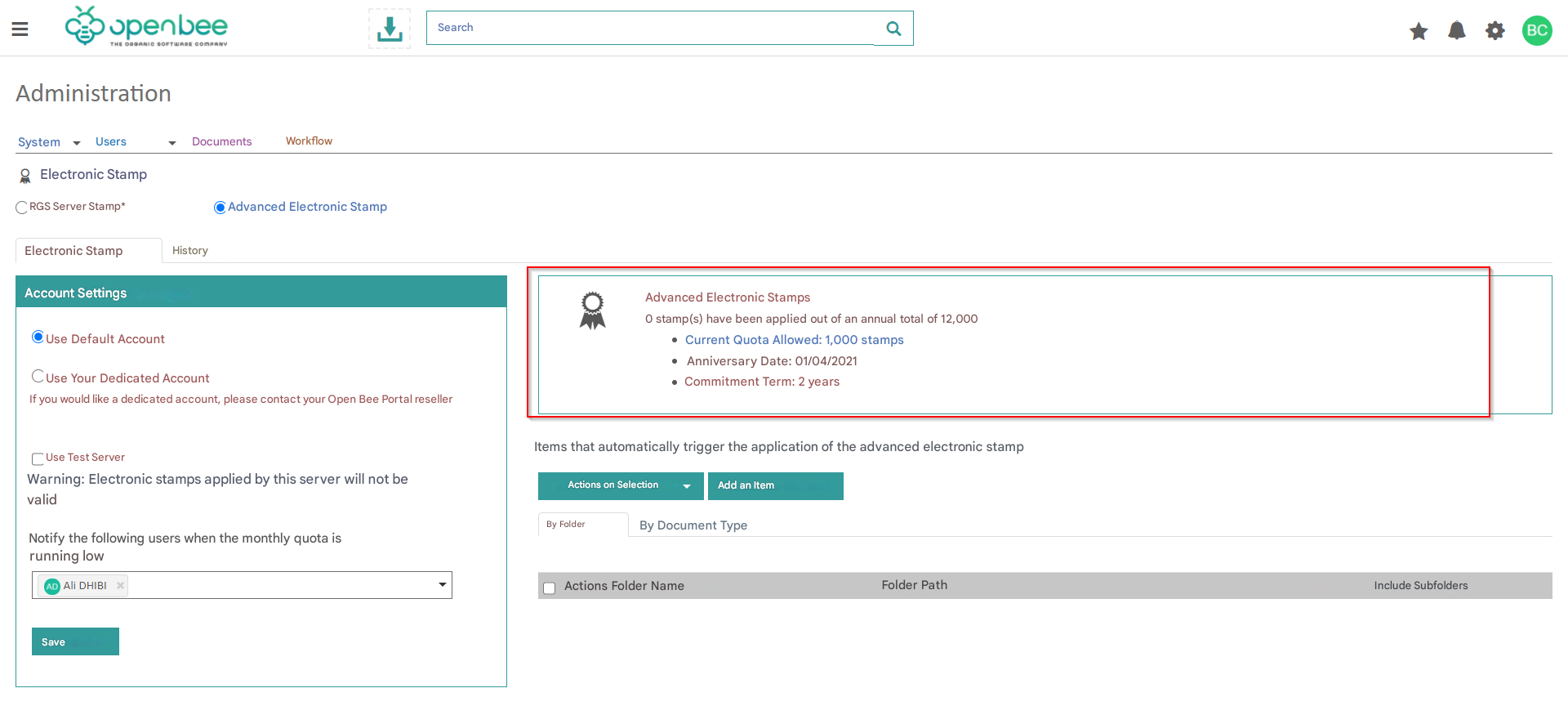
You can view and track the number of stamps applied, the annual total and information related to your authorized quota at any time from the ” Administration/Electronic Seal” interface.
Historical
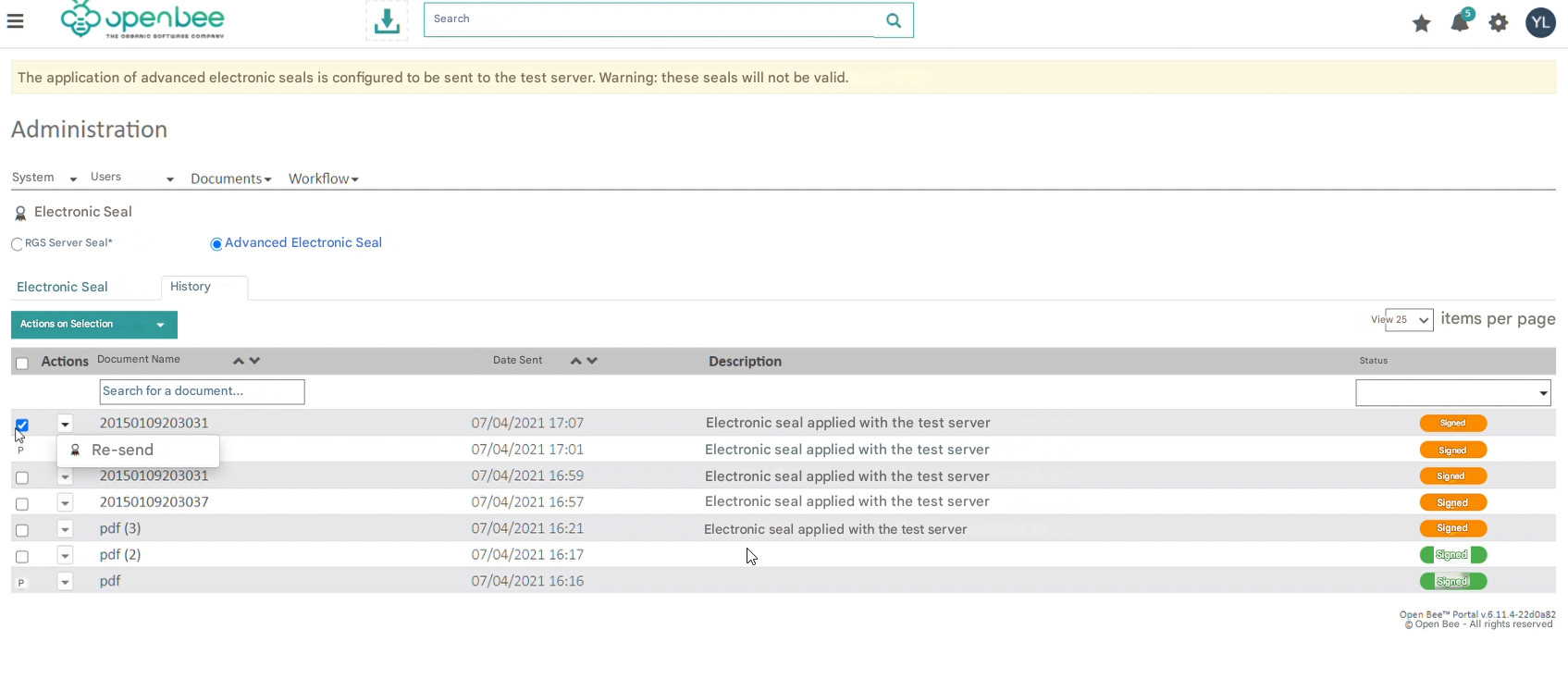
An electronic stamp tracking table will allow you to view and track all electronic stamps made as well as their status.
This interface allows you to perform the “Re-send” action, especially for those who are in error.
Managing monthly quotas with carryover
The electronic seal system is based on an annual flat rate, the quota of which is divided equally each month. Fees that are not used in a month are automatically carried over to the following months, thus increasing the available quota. You can consume, at any time, up to the entire quota accumulated since your contract anniversary date, which also marks the reset of the meter for a new annual cycle.